Shopify Markets & International SEO: Hreflang and Multi-Currency Guide

Selling to a second country sounds simple. Then you find out about currencies, languages, shipping rules, and Google showing the wrong version of your store. This guide explains Shopify Markets and international SEO in plain language, so you can launch a new market without the headaches.
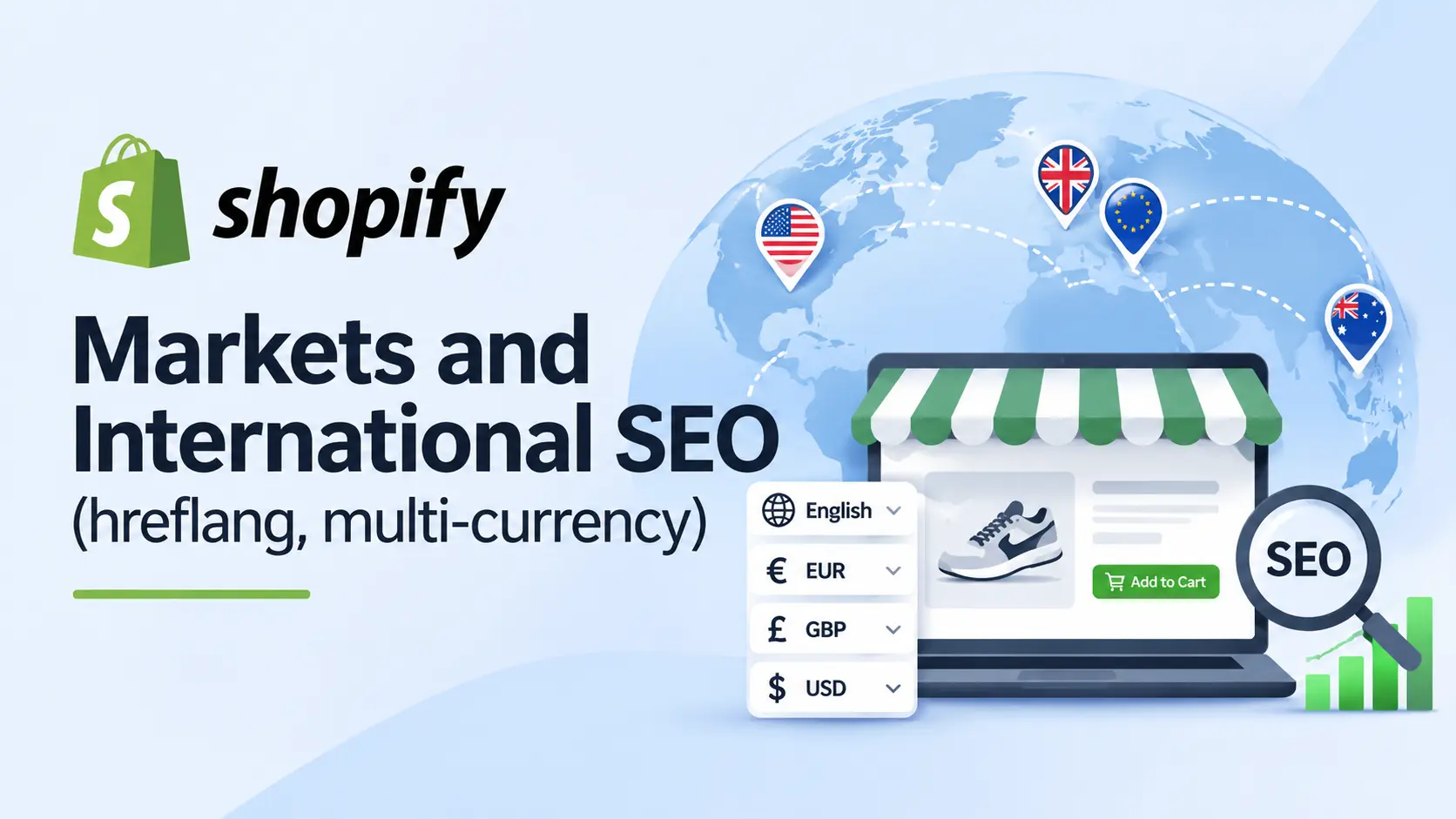
Shopify Markets and international SEO guide

Introduction:

Let's say you run a store that ships within your country. A customer in another country finds you on Google, sees prices in the wrong currency, and leaves. You never even knew they tried to buy.

International SEO fixes this. You show each customer the right version of your store, in their currency and language, and Google learns which version to show in which country.

Published: November 3, 2026 Last updated: November 3, 2026

This guide is written for store owners, not developers. You do not need to know code to follow it. Where a small code example helps, we mark it clearly.

What Shopify Markets does

Shopify Markets lets one store sell in many countries. You pick the markets, and Shopify helps you handle:

CurrencyShow prices in local money
LanguageTranslate key pages and text
PricingSet prices per market
Taxes and dutiesShow the real checkout total
In simple words: one store, many markets. Each market has its own prices, language, and rules, but it all lives in the same admin.

Pick a URL structure that is easy for Google

Your URL setup tells Google and shoppers where each market lives. Most stores should use subfolders. Here is how the three main options compare.

Usually best

Subfolders

yourstore.com/ar/

All markets share one domain. Your store's SEO strength stays in one place, and setup is easy.

Subdomains

ar.yourstore.com

Works, but each subdomain is treated more like a separate site. Good for special cases only.

Separate domains

yourstore.ae

Strong local signal, but you manage more domains, more links, and more SEO work.

What is hreflang, in plain language?

Hreflang is a small tag on each page. It says, "This page is for this language and country, and here are the other versions." It helps Google show the right version to the right person, so a UAE shopper does not land on a page meant for another market.

Shopify adds hreflang tags for markets in most setups. You do not need to write them yourself, and adding them twice can cause confusion. Here is what a correct set looks like, for your reference only:

<!-- Example only: Shopify generates these for your markets --> <link rel="alternate" hreflang="en-ae" href="https://yourstore.com/" /> <link rel="alternate" hreflang="ar-ae" href="https://yourstore.com/ar/" /> <link rel="alternate" hreflang="en-us" href="https://yourstore.com/us/" /> <link rel="alternate" hreflang="x-default" href="https://yourstore.com/" />

Check your own page source to see what Shopify outputs. Every market page should list the others, and the same set should appear on each one.

Common mistake Pointing every market to the homepage, or missing the x-default version. Google then cannot tell which page belongs to which market, and results get mixed up.

Multi-currency: show the right price

Shoppers trust prices they can understand. When they see prices in their own currency, they are more likely to buy. Set up prices like this:

  1. Choose the market currency. Use the currency the shopper expects, not just the one your bank uses.
  2. Set prices per market when it matters. Local shipping, costs, or competition may need a different price, not just a converted one.
  3. Use rounding rules. Round to clean numbers, such as 149 instead of 147.63, so prices look natural.
  4. Check the checkout total. Tax, duties, and shipping can change the final price. Test a full order before you launch.
Tip Show the price with tax included when that is what shoppers expect in your market. Mismatched prices at checkout are one of the fastest ways to lose a sale.

Local content matters more than translation

Translating every word is not enough. Customers search in their own way, and that is what Google matches. Do this for each market:

  • Use local search words. A product may have a different name in another country. Check what people really type.
  • Write for the market. Mention local shipping times, payment methods, and return rules.
  • Start with the money pages. Translate the homepage, top products, main collections, and shipping and returns pages first.
  • Get a native speaker to check. Machine translation can read oddly, and odd text hurts trust.

Launch a new market in 6 steps

  1. Pick one market. Choose the country with the most interest or the best sales potential. Do not launch five at once.
  2. Set the URL structure. Use subfolders unless you have a clear reason not to.
  3. Set currency and prices. Use rounding rules and check the checkout total.
  4. Translate the key pages. Start with the homepage and top products, then expand.
  5. Check shipping, payments, and policies. Make sure each market shows the right options.
  6. Measure and adjust. Watch sales, conversion, and search results for that market before you launch the next one.

Avoid forced redirects

It is tempting to send every visitor to the "right" country store automatically. Avoid it. Forced redirects can stop shoppers who want a different version, and they can stop Google from crawling each market. Instead, show a friendly banner that suggests the right market, and let the visitor choose.

How to know it is working

Check these every month for each market:

Where to look What to check
Google Search ConsoleDoes the right market version show for searches in that country?
GA4Sales and conversion rate by country, to spot weak markets
Shopify reportsOrders and average order value by market
Your own testSearch from that country and check price, language, and checkout total

International growth works best when your whole store is in good shape. These guides cover the basics you will need:

Pro Tips

  • Start with two markets, not ten
  • Use the same product photos across markets to save time
  • Keep one clear shipping and returns page per market
  • Review your market list every quarter

FAQ

Shopify Markets lets you sell in several countries from one store. You choose the markets, then set currency, prices, languages, and tax and duty rules for each one.
For most stores, subfolders such as /ar/ are the simplest choice, because they keep your SEO strength on one domain. Use separate domains only with a clear local reason.
Hreflang tells Google which language and country version of a page to show. If you sell in several markets, it helps. Shopify adds these tags in most setups, so check your page source before adding anything by hand.
Yes. You can set prices per market or use automatic conversion with rounding. Always check the final checkout total, including tax and duties, before you launch.
It is better not to. Forced redirects can block shoppers and search engines from other versions. Show a banner that suggests the right market, and let the visitor choose.
No. Start with the homepage, top products, main collections, and shipping and returns pages. Have a native speaker check the important pages.
Check Google Search Console to confirm the right market shows for each country's searches. In GA4, compare sales and conversion rate by country, and fix one market at a time.
It is worth it if you plan many markets, custom pricing, or you already have traffic you do not want to lose. A simple two-market setup is something most store owners can do with this guide.

Ready to Build or Improve Your Shopify Store?

Work with expert Shopify developers to grow your eCommerce business faster