Shopify Product Schema (JSON-LD): Guide with Code (2026)
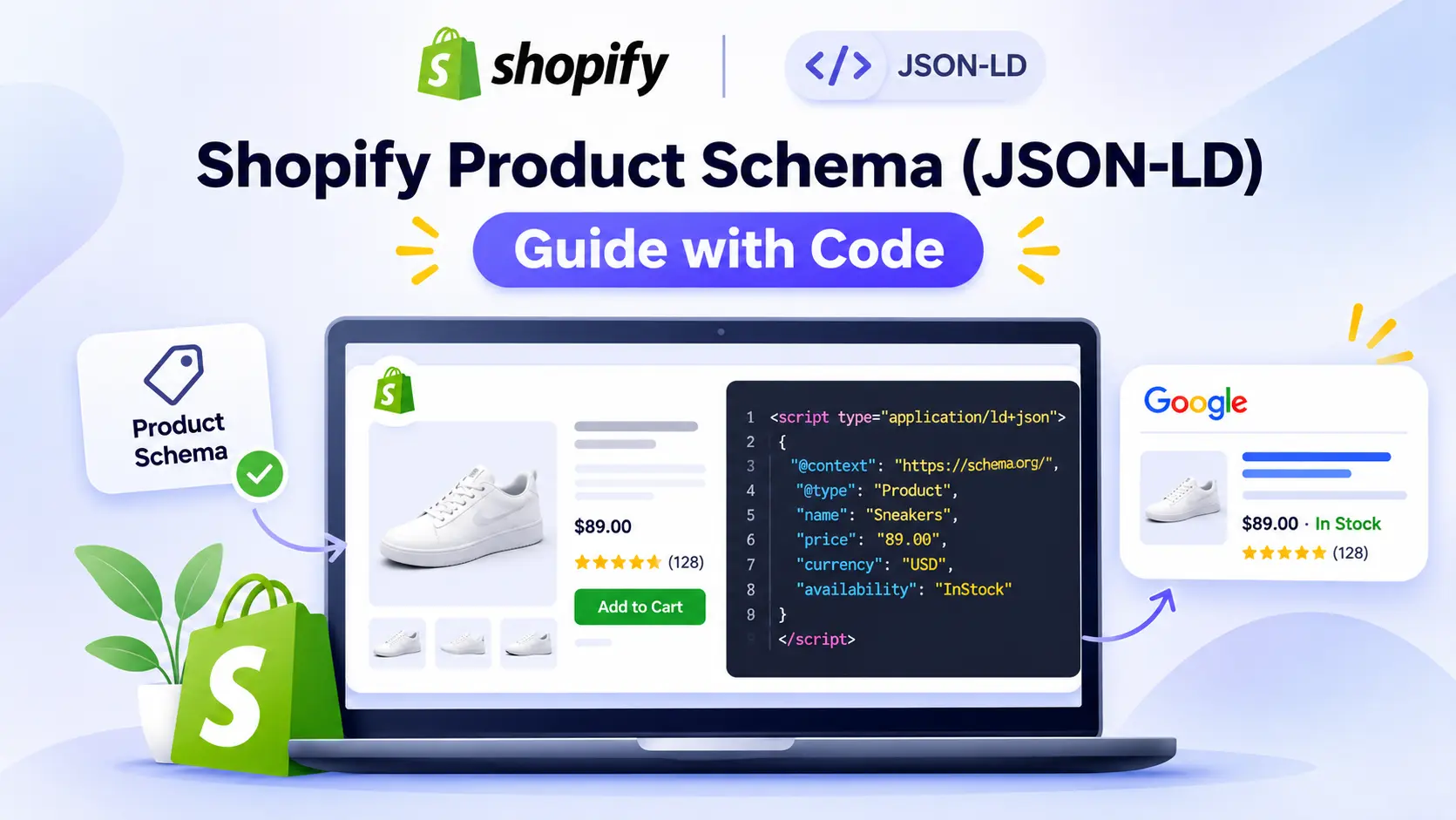
Product schema tells Google exactly what each product page sells: the name, image, price, stock status, and brand. When it is correct, your products can qualify for rich results. This guide gives you a complete, copy-paste Shopify product schema snippet, with variant pricing, GTIN handling, and the validation steps that catch errors before Google does.
By Codify Infotech
Shopify Expert
November 3, 2026
14 min read
By Codify Infotech
Shopify Expert
November 3, 202614 min read
Introduction:
Search engines read your product pages, but structured data makes the facts explicit. Without it, Google has to guess your price, stock status, and brand from page text, and it often guesses wrong, especially on variant-heavy stores. A clean Product JSON-LD block removes that guesswork.
This guide gives you a production-ready Liquid snippet, explains each property, and covers the edge cases that break most Shopify setups: multiple variant prices, missing barcodes, duplicate schema from themes and apps, and reviews.
Product schema at a glance
One snippet, one Product block per page, and every value pulled live from Shopify so price and stock never drift from what shoppers see.
1snippet to add
1Product block per page
0hardcoded values
Which Schema Types Matter for Products
Core
Product
Name, image, description, SKU, brand, and the offers block. This is the main type for product pages.
Pricing
Offer / AggregateOffer
Price, currency, and availability for one variant, or a low and high price range when variants differ.
Trust
AggregateRating
Average rating and review count, only when real reviews are visible on the page.
Identity
GTIN and Brand
Barcodes and brand names that help match your product to the right listing and catalog.
Breadcrumb
BreadcrumbList
Shows the category path in search results, which helps shoppers understand the page before clicking.
Context
Organization
Your business name, logo, and contact details, placed once on the site, not on each product.
Setup in Four Steps
1
Check for existing Product schema
View the source of a product page and search for "@type": "Product". Many themes already output it. If you find it, edit that block instead of adding a second one.
2
Clean the data in Shopify first
Add valid barcodes to variants, set accurate vendor names, and use descriptions that match the page. The snippet can only output what Shopify stores.
3
Create the snippet and render it once
Add snippets/product-schema.liquid with the code below, then call {% render 'product-schema' %} inside the product template, only on product pages.
4
Validate on a live product
Run the live URL through Google's Rich Results Test and the Schema Markup Validator. Fix errors first, then warnings, then recheck after a few days in Search Console.
Where to call it: add {% render 'product-schema' %} once in your product section or template. If your theme already has a Product block, remove that block instead of keeping both, because two Product blocks on one page is the most common validation error.
Why Each Property Matters
Property
Source in Shopify
Why it matters
name
Product title
Required. Must match the visible page heading.
image
Featured image at 1200 px
Strongly recommended. Use a real product photo, not a logo.
sku
Variant SKU, or variant ID as fallback
Helps Google tie the page to inventory data.
gtin
Variant barcode
Only output valid UPC, EAN, or ISBN values.
brand
Vendor
Improves matching for branded products.
offers.price
Variant price ÷ 100
Must match the price on the page, including currency.
offers.availability
Variant availability
Out-of-stock items must say so, or shoppers land on a dead end.
Do
Output price and stock from Shopify variables
Use AggregateOffer when prices differ by variant
Keep one Product block per page
Add GTIN only when it is a valid barcode
Do not
Hardcode prices, ratings, or stock counts
Put SKUs or internal codes in the gtin field
Add review ratings you cannot show on the page
Let two apps or themes output Product schema
Edge Cases That Break Most Setups
Price range: when variants have different prices, a single Offer with one price is wrong for part of your catalog. The snippet switches to AggregateOffer automatically using product.price_min and product.price_max.
Variants with no barcode: the gtin line is skipped, so no invalid value is sent
Products with no image: the image property is omitted rather than left blank
Multi-currency stores: the currency comes from cart.currency, so check your Markets setup
Sold-out products: availability switches to OutOfStock automatically
Long descriptions: stripped of HTML and cut to 300 characters
Review apps: pull ratings from the app's own output, never hardcode them
Validation Checklist
Rich Results Test shows the Product type with no errors
validator.schema.org shows one Product block
Price in schema matches the page for a default and a non-default variant
GTIN values are 8, 12, 13, or 14 digits and pass a check digit test
Search Console shows no new product enhancement errors after recrawl
Pro Tips
Test one product manually before rolling out to all templates
Re-validate after every theme update, since themes often reset code
Keep the snippet in version control so changes are traceable
Match schema descriptions to the visible page copy
Product schema is JSON-LD structured data that tells search engines the product name, image, price, currency, availability, brand, and identifiers. Correct markup can make product pages eligible for rich results.
Create snippets/product-schema.liquid and render it once in the product template. Render it only on product pages, and only one time per page.
Many themes output some Product data by default, and the output varies. Check the page source for an existing Product block before you add your own, to avoid duplicates.
Use Offer when every variant has the same price. Use AggregateOffer with lowPrice, highPrice, and offerCount when variant prices differ.
Enter the barcode on each variant in Shopify, then output it as gtin. Only use valid UPC, EAN, or ISBN values. Never output SKUs as GTIN.
Yes, but only with real reviews that are visible on the page. Take the rating from your review app's output and never hardcode a rating or review count.
Run the live product URL through Google's Rich Results Test and the Schema Markup Validator at validator.schema.org. Then check Search Console's product enhancements report after Google recrawls the page.
Hire a developer for many variant types, multiple currencies through Shopify Markets, or a custom theme with duplicate schema. The standard snippet in this guide takes under an hour to add.