Shopify Cart Limit App Guide (2026): Set Min & Max Order Rules at Checkout

Cart limits stop unprofitable, invalid and bulk orders before they reach payment. This guide shows how to set minimum and maximum cart value, quantity, weight and shipping rules in Shopify with Codify Cart Limits, plus the mistakes that break validation.

Shopify Cart Limit App: Set Min & Max Order Rules (2026)

Introduction:

A cart limit is a rule that decides whether a shopper can move from cart to checkout. If the cart breaks the rule, checkout is blocked and the shopper sees a clear message explaining what to change. Merchants use cart limits to enforce minimum order values, cap quantities on limited-stock products, protect shipping margins and stop orders that cannot be delivered.

Most stores need cart limits for one of three reasons: protecting margin on small orders, allocating scarce stock fairly during drops, or enforcing wholesale minimums without maintaining a separate store. Each of these is a rule you can configure without touching theme code, provided the app validates at checkout.

This guide covers the rule types, a six-step setup for Codify Cart Limits, four rule recipes, edge cases to test before going live, and the mistakes that cause the most support tickets.

In short

Cart limits = protected margin + fair stock allocation + fewer failed deliveries, enforced at checkout with rules you set in minutes.

How cart limits work at checkout

Value, quantity, weight and product rules

Customer and shipping address restrictions

Setup in 6 steps, no code

Edge cases and mistakes to avoid

  • 1 Minimum cart value
  • 2 Maximum cart value
  • 3 Minimum total quantity
  • 4 Maximum total quantity
  • 5 Maximum quantity per product
  • 6 Minimum quantity per product
  • 7 Weight limit
  • 8 Product-based restriction
  • 9 Product tag rule
  • 10 Customer tag rule
  • 11 Logged-in customers only
  • 12 Shipping country
  • 13 ZIP / postal code
  • 14 PO Box block
  • 15 AND / OR condition logic
  • 16 Multilingual error messages

Cart limit setup: step-by-step guide


1. Install the App

  • Open the Codify Cart Limits listing on the Shopify App Store and install it on a development store first.
  • The free plan includes up to 3 live rules. Off and Testing rules are unlimited.

2. Start From a Template

  • Pick a ready-made template such as minimum order value or max quantity per product.
  • Templates save setup time and give you a tested starting point to edit.

3. Add Conditions

  • Combine cart value, quantity, products, customer tags and shipping address.
  • Use AND when every condition must match. Use OR when any single condition should trigger the block.

4. Write Specific Error Messages

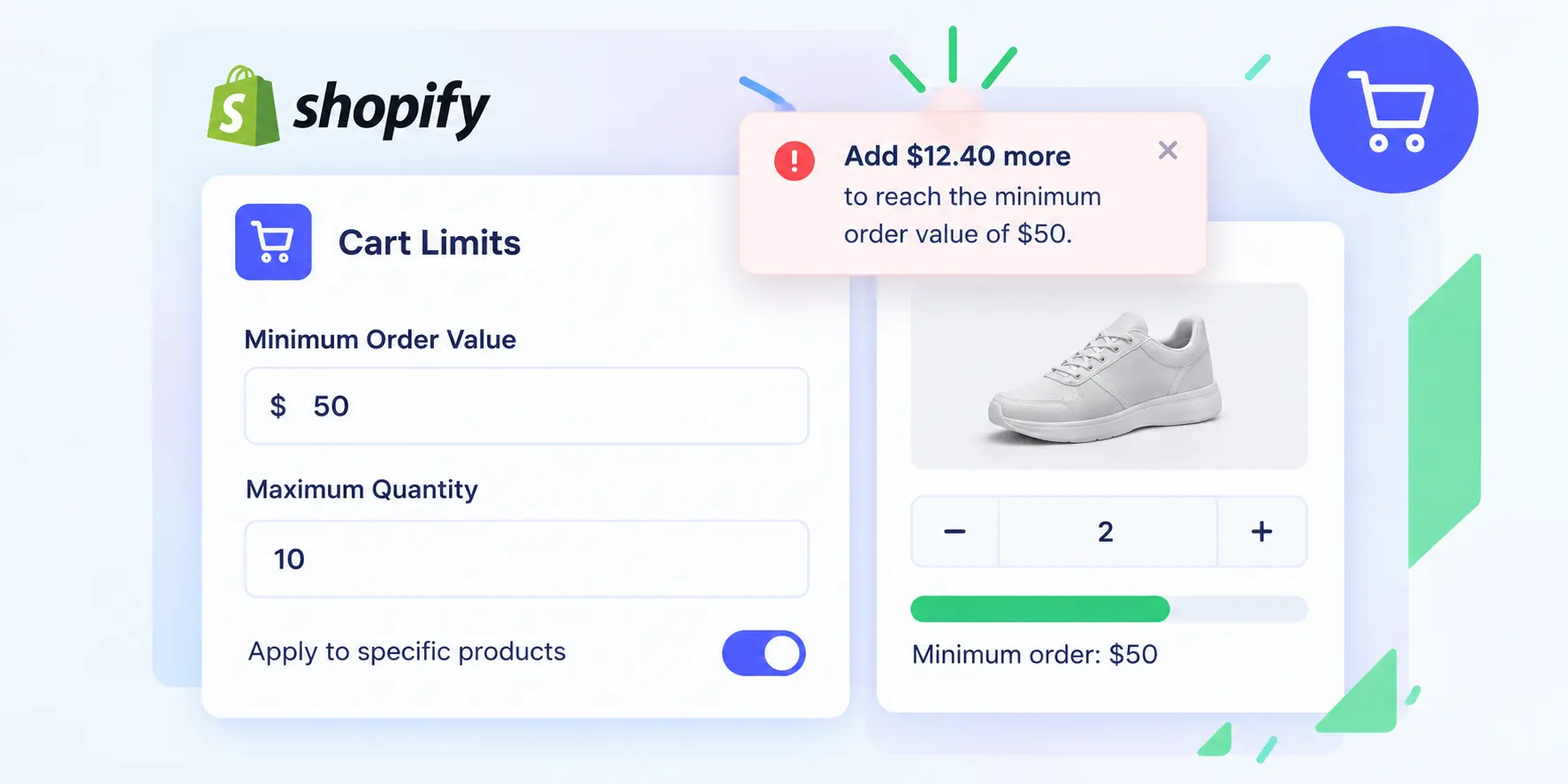
  • Name the exact amount needed: "Minimum order is $50. Add $12.40 more to continue."
  • Add translated messages for every language your store serves. Generic text like "Cart invalid" causes drop-off.

5. Choose Where the Error Appears

  • Select the checkout location for the message so shoppers see it where they can act on it.
  • Check the placement on desktop and mobile before you publish the rule.

6. Test Then Go Live

  • Keep new rules in Testing mode while you place test orders.
  • Test as a guest, as a tagged wholesale customer and with a PO Box address. Move the rule to live only after each path behaves as expected.

Rule recipes that work


Recipe 1: Free-Shipping Threshold

  • Rule: minimum cart value equal to your free-shipping threshold, for example $50.
  • Message: show the exact remaining amount. Pair with a cart progress bar in your theme to lift average order value.

Recipe 2: Fair Allocation for a Limited Drop

  • Rule: product tag equals drop-q4, maximum 2 units per product.
  • Add a second rule for maximum total units per order to block bulk buyers across different SKUs.

Recipe 3: Wholesale Minimums on One Store

  • Rule: customer tag equals wholesale, minimum 24 units in the cart.
  • Retail customers are unaffected. Document your wholesale tagging process so accounts are tagged consistently.

Recipe 4: Block Undeliverable Addresses

  • Rule: block PO Box addresses, and block countries or postal codes outside your delivery area.
  • Check your carrier coverage first. Some carriers deliver to PO Boxes, so do not block them blindly.

Edge Cases to Test Before Going Live

  • Express checkout (Shop Pay, Apple Pay, Google Pay) can skip the cart page. Confirm validation still blocks checkout.
  • Cart drawer: confirm the error message displays inside the drawer on your theme, not only on the cart page.
  • Guest shoppers: customer tag rules must behave correctly when the customer is not logged in.
  • Mobile: check message placement and readability on a small screen.
  • Theme updates: re-test after any theme or cart-drawer change, since layout changes can hide messages.

Pricing: Free vs Pro

  • Free: up to 3 live rules, unlimited Off and Testing rules, all rule conditions, multilingual messages and ready-made templates.
  • Pro: $3.99 per month for up to 25 live rules, with everything in Free and a 7-day free trial.
  • Recommendation: start on Free to validate your first rules. Upgrade when you need more than three live rules, usually when you add wholesale tiers or regional shipping restrictions.

Common Cart Limit Mistakes

  • Setting a minimum above your shipping threshold with no message
  • Using OR logic where AND was intended, which blocks too many carts
  • Forgetting guest shoppers in customer tag rules
  • Writing generic error text instead of the exact amount needed
  • Skipping express checkout tests before going live
  • Blocking PO Boxes without checking carrier coverage
  • Adding limits with no clear margin, stock or delivery reason
  • Leaving Testing rules in place after launch
  • Missing translations for secondary markets
  • Not reviewing rules after a campaign or price change

Advanced Cart Limit Tips

  • Pair weight limits with value limits to protect carrier rate tiers.
  • Show the remaining amount in the error message to lift average order value.
  • Use one customer tag per wholesale tier so each tier has its own minimum.
  • Give every rule a descriptive name so teammates can audit it later.
  • Record each rule, its purpose and its owner in your internal docs.
  • Review rule performance after every campaign or seasonal sale.
  • Use a cart progress bar in your theme to guide shoppers toward the minimum.
  • Test all rules again after a theme update or cart-drawer change.
  • Link cart limits to your shipping policy page so shoppers see the rules in context.
  • Use a product tag per drop so you can add and remove products without editing rules.

Key Takeaways

  • Start with a minimum cart value to protect margin on small orders.
  • Use quantity limits to allocate limited stock fairly.
  • Block PO Boxes only where your carrier cannot deliver.
  • Write error messages that name the exact amount needed.
  • Test express checkout and the cart drawer before going live.
  • Validate on the Free plan (3 live rules), then upgrade to Pro as you grow.
  • Review rules after every campaign, price change or theme update.
  • Link this guide to the app page so shoppers and search engines see both.

FAQ

Yes. Create a cart value rule with a minimum subtotal. Checkout stays blocked until the cart qualifies, and the message you write is shown to the shopper.
Yes. A shipping address rule can detect PO Box addresses and block checkout. Confirm your carrier delivers to PO Boxes before blocking them.
Checkout validation runs on Shopify checkout, so product and collection pages are not affected. Test your cart drawer after install to confirm messages display correctly.
Codify Cart Limits has a free plan with up to 3 live rules and all rule conditions. The Pro plan costs $3.99 per month for up to 25 live rules, with a 7-day free trial.
Yes. Use a product-specific rule for maximum quantity per product, and a cart-level rule for total units per order.
Yes. Add a customer tag condition so the rule applies only to tagged customers, such as wholesale accounts.
Test this on your store. Express checkout buttons can skip the cart page, so confirm that validation still blocks checkout as expected.
Yes. Add translated error messages for each language your store uses, so shoppers see the rule in their own language.
No. Rules are built in the app admin using conditions, templates and error message fields. No theme code is required.

Ready to Build or Improve Your Shopify Store?

Work with expert Shopify developers to grow your eCommerce business faster