Shopify Image Optimization Guide (2026): Improve Speed, SEO & Conversions

High-quality images are essential for showcasing your products, but unoptimized images can slow down your Shopify store, hurt your SEO rankings, and reduce conversions. This complete Shopify Image Optimization Guide explains how to choose the right image formats, compress files without losing quality, write SEO-friendly ALT text, improve Core Web Vitals, and create a faster shopping experience that helps drive more sales.

Shopify Image Optimization Guide (2026) | Boost Speed, SEO & Sales

Introduction:

High-quality images can make or break your Shopify store. They influence buying decisions, build trust, and improve user experience. But if images are not optimized properly, they can slow down your website and harm your SEO rankings. This complete Shopify Image Optimization Guide will help you optimize images for speed, SEO, and better conversions.

In short

Optimized images = faster store + better UX + higher rankings + more sales.

Why images optimization is important for shopify stores?

Faster Loading Speed

Optimized images reduce load time and improve Core Web Vitals.

Higher SEO Rankings

Image optimization helps search engines crawl and rank your pages better.

Better User Experience

Fast and crisp images create a smoother shopping experience.

More Conversions

High-quality images build trust and increase purchasing confidence.

Lower Bounce Rate

Visitors stay longer when your store loads fast and looks professional.

1. Choose the right image formate

Different formats serve different purpose. use the right formate to balance quality and performance.
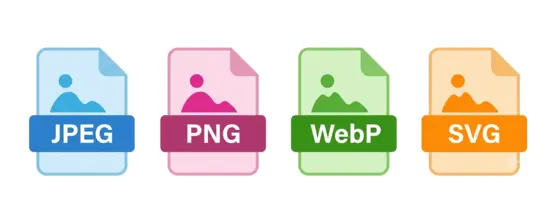
  • JPEG: Best for product photos and complex images.
  • PNG: Ideal for logos, icons, and transparent images.
  • WebP: Best for performance (smaller size, high quality). Shopify supports WebP!
  • SVG: Perfect for vector graphics and icons.
Choose the right image formate

2. Optimize image file size

large image files show down your site. compress images without losing quality.
  • Use tools like TinkyPNG, shortpixel, or imageoptim.
  • keep file size under 200KB for product images.
Optimize image file size

3. Use Descriptive file names

Use descriptive and keyword-rich file names.

  • Good:organic-cotton-tshirt-front-view.jpg
  • Avoid: IMG_1234.jpg
Use Descriptive file names

4. Add Alt Text for SEO & Accessibility

ALt text helps search engines understand your images and improves accessibility.

  • Be descriptive and natural.
  • include your target keyword when relevant.
Add Alt Text for SEO & Accessibility

5. Implement responsive images

serve the right image size for each device.

  • Use shopify's biilt-in responsive image feature.
  • Avoid loading large images on mobile devices.
Implement responsive images

6. Lazy load images

Lazy loading loads images only when appear on the screen.

  • Enable lazy loading in your theme settings.
  • improves initial page speed.
Lazy load images

7. Optimize product, collection & Blog images

  • Use consistent dimensions.
  • Optimize banner images and collection images.
  • compress blog images before uploading.
Optimize product, collection & Blog images

Shopify image optimization best practices

Practice Why It Matters
Use correct image format Improves quality and reduces file size.
Compress images before upload Faster loading and better user experience.
Add alt text Better SEO and accessibility.
Use descriptive file names Helps with image search and rankings.
Implement responsive images Better performance on all devices.
Use lazy loading Reduces initial load time.
Optimize regularly Keeps your store fast and competitive.

Best tools for shopify image optimization

TinyPNG

TinyPNG

ShortPixel

ShortPixel

ImageOptim

ImageOptim

Squoosh

Squoosh

Google PageSpeed insights

Google PageSpeed insights

Common Mistakes to Avoid

  • Uploading high-resolution images without compression.
  • Using generic file names like IMG_1234.jpg.
  • Ignoring alt text or using irrelevant alt text.
  • Using the wrong image format.
  • Not testing page speed after uploading images.

FAQ

Shopify automatically generates multiple image sizes and applies some optimization techniques, but it does not replace manual optimization. Compressing images, choosing the correct format, writing descriptive ALT text, and using SEO-friendly filenames before uploading still provides the best results.
WebP is generally the preferred format because it offers excellent image quality with significantly smaller file sizes. JPEG remains a good option for photographs, PNG works well for transparent graphics, and SVG is ideal for logos and icons.
For most product images, a width between 2000 and 2500 pixels provides excellent quality while supporting Shopify's zoom feature. Always compress images before uploading to reduce file size without sacrificing visual clarity.
Yes. Optimized images contribute to faster page speed, better Core Web Vitals, improved accessibility, and stronger technical SEO. These factors can positively influence your website's visibility in Google Search and Google Images.
Yes. Every important product image should include descriptive ALT text that accurately explains the image. This improves accessibility for users with screen readers and helps search engines understand the content.
Optimize every image before uploading it to Shopify. In addition, perform periodic image audits to identify outdated, oversized, or poorly optimized images that could be affecting website performance.
Modern compression tools significantly reduce file size while maintaining excellent visual quality. In most cases, customers will not notice any visible difference between the original and optimized versions.
Popular free tools include TinyPNG, Squoosh, ImageOptim (macOS), Adobe Express, and Canva. These tools help compress, resize, and prepare images for faster loading on Shopify stores.

Ready to Build or Improve Your Shopify Store?

Work with expert Shopify developers to grow your eCommerce business faster